FlowLingua Browser Extension
Open a YouTube video, click the FlowLingua icon – and the video lands in your library with subtitles and word timings. Ready to learn in the flow.
For Chrome (desktop) · Edge compatible · Free
One-click install from the Chrome Web Store is coming soon – the extension is currently under review.
How to install the beta (about 2 minutes)
Install once, use it permanently – after that, importing a video takes one click.
Download the beta ZIP
The file lands in your Downloads folder (about 100 KB).
Unzip the file
Double-click the file – a folder like flowlingua-import-beta appears. Important: keep this folder where it is – don’t delete or move it.
Open chrome://extensions
Chrome menu (⋮, top right) → “Extensions” → “Manage Extensions” – or type chrome://extensions in the address bar.
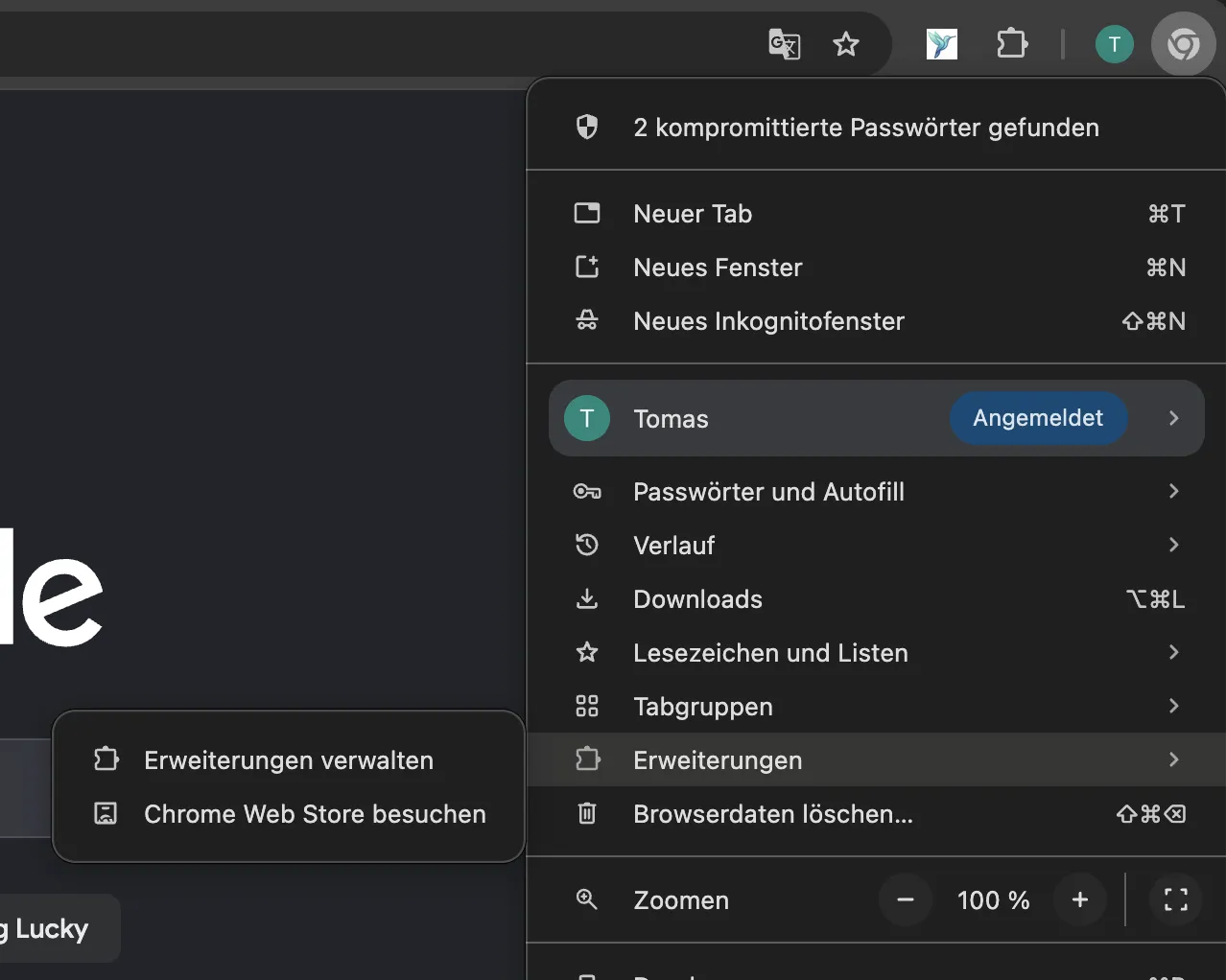
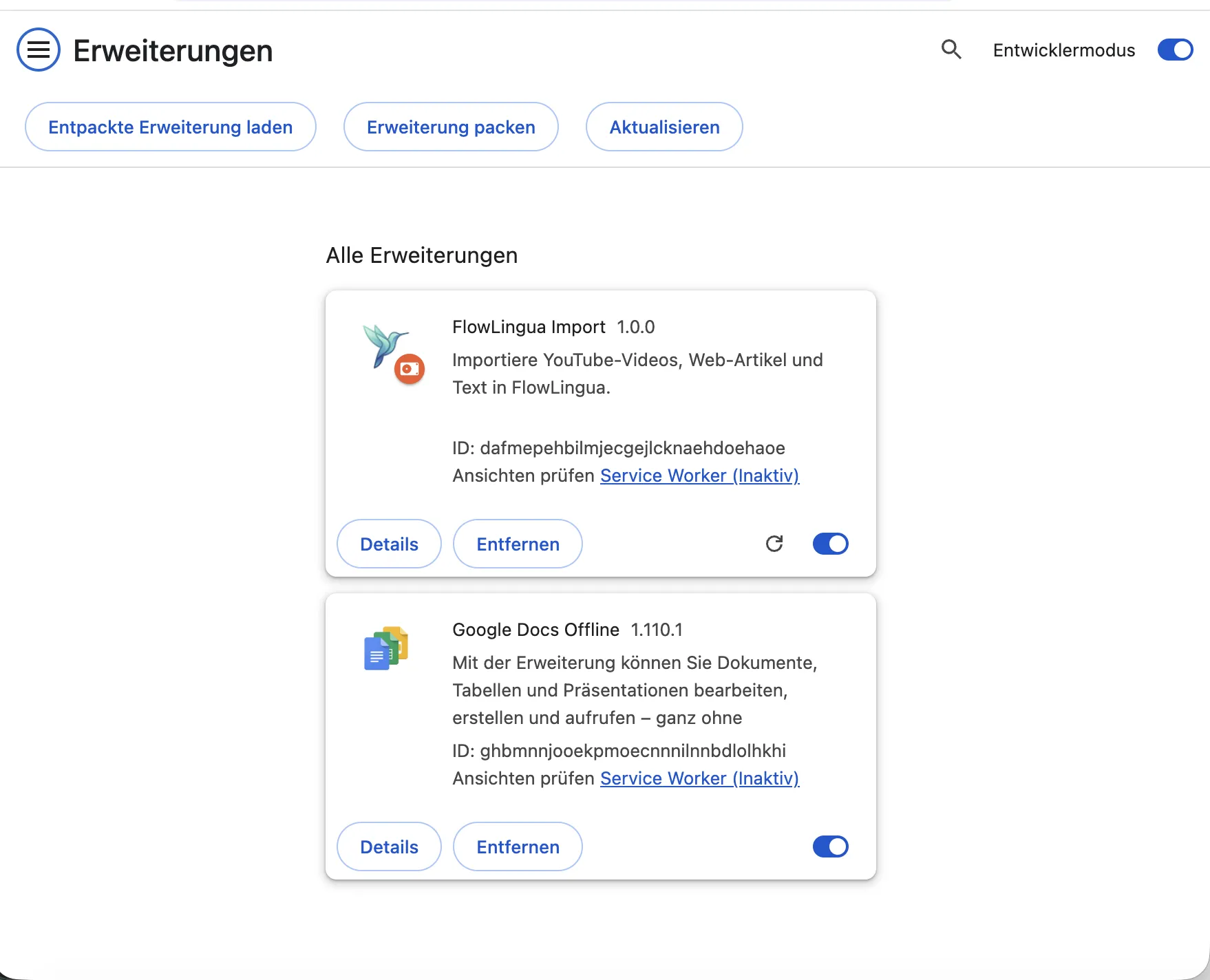
Enable Developer mode & load the extension
Switch on “Developer mode” in the top-right corner. Then click “Load unpacked” and select the folder from step 2. The “FlowLingua Import” card appears.
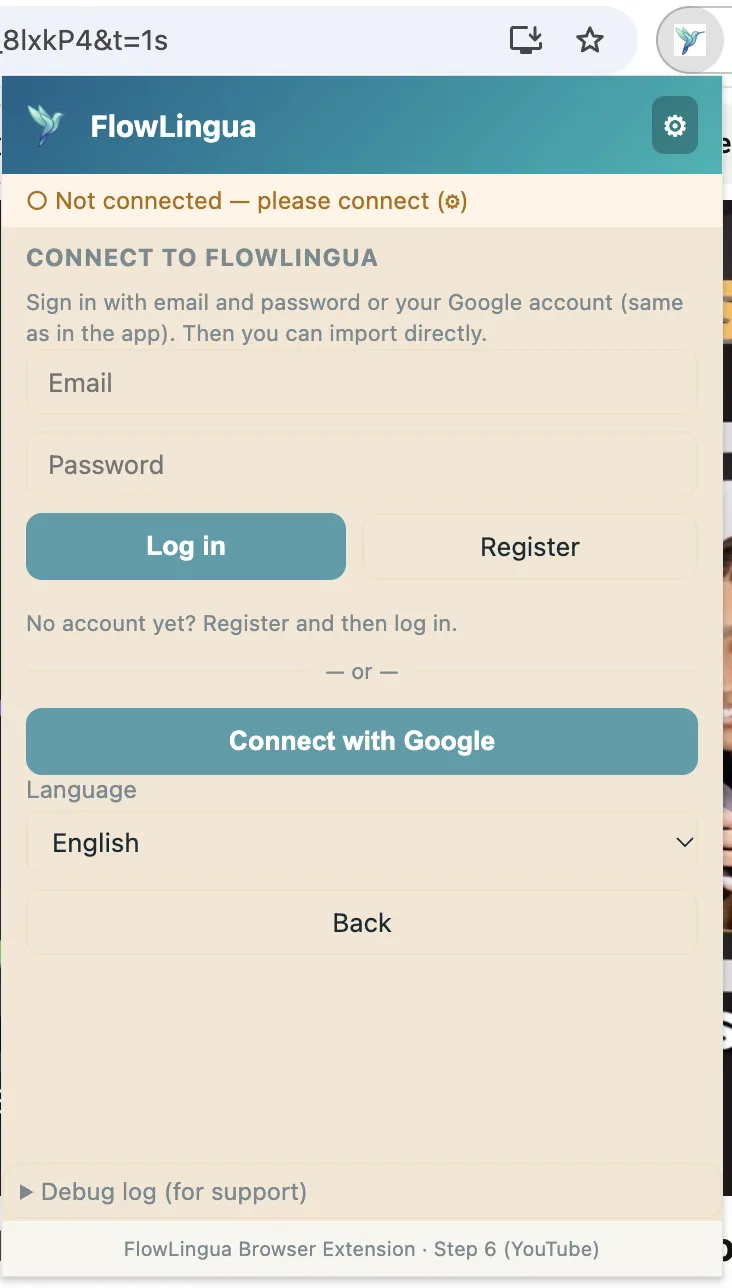
Open a video & sign in
Open a YouTube video with captions and click the FlowLingua icon in the toolbar. Sign in with your FlowLingua account (email or Google).
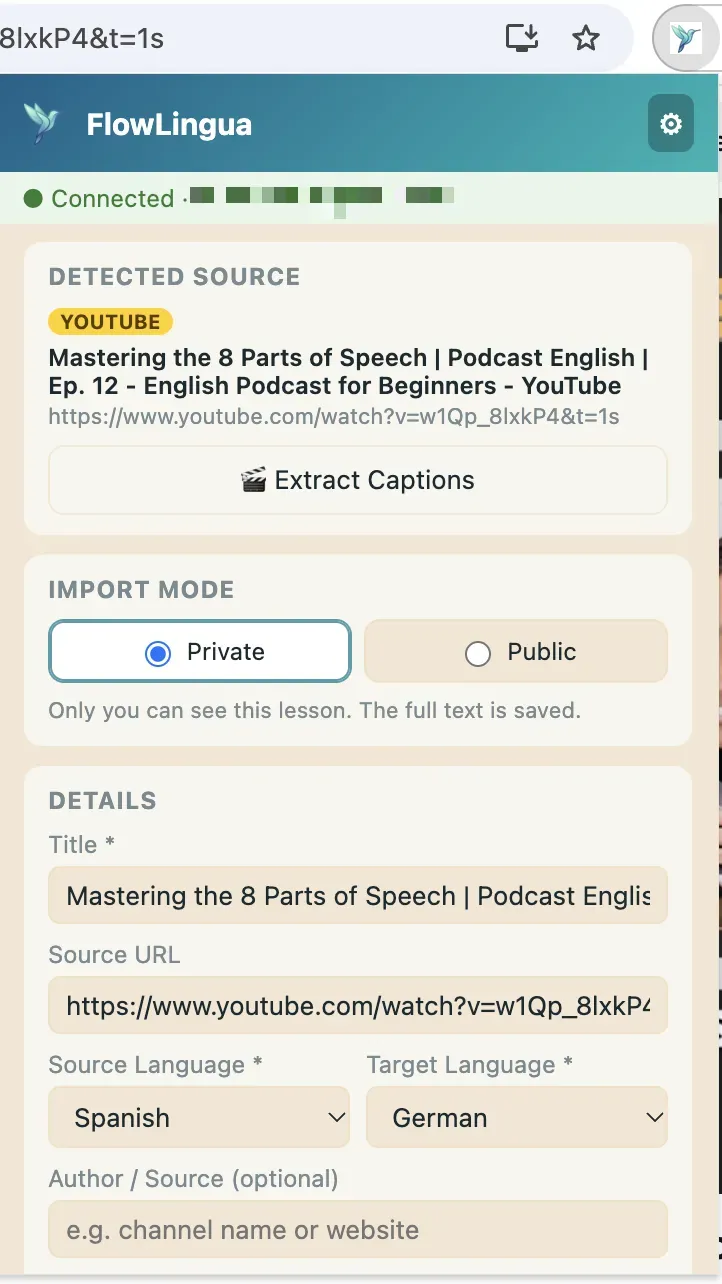
Import & learn
Click “Extract Captions” in the popup – the lesson appears in the web app under “My content”, with word timings and translations included.
- Chrome may occasionally show a notice about developer-mode extensions on startup – that’s normal and harmless, just ignore it.
- Beta updates: whenever a new version ships, download the current ZIP, unzip it to the same place and click the reload icon on the FlowLingua Import card in chrome://extensions.
Why a browser extension?
YouTube cannot be embedded directly into the web app: YouTube blocks its pages from being framed in other websites. The browser extension runs right on the YouTube page and picks up the subtitles exactly where they are. That makes it the official FlowLingua way to import YouTube videos on desktop. On your phone, import works directly inside the app.
Note: Only the video’s subtitles are processed – not the video itself.
Imported in 3 steps
From beta install to finished learning content in under a minute.
Install
Install the beta extension – the guide above walks you through every step (about 2 minutes).
Open a video
Open a YouTube video with subtitles and click the FlowLingua icon in the toolbar.
Import & learn
Sign in with your FlowLingua account and click “Import subtitles”. The content appears in the web app under “My content” – including word timings and translations.
What the extension gives you
- Subtitles with word timings – precise word-level timing for the synchronized flow player.
- Automatic CEFR level detection – FlowLingua analyzes the video’s language level.
- License detection – Creative Commons videos (CC-BY) are recognized for safe public sharing.
- Private or public – import videos privately or share them in the public library.
- Web page texts – import articles and texts from websites with a single click.
Frequently asked questions
What data does the extension process?
The extension sends the video URL, its title and its subtitles to FlowLingua. Nothing is stored on your device and your browsing is not tracked. See the privacy policy for details.
Which browsers are supported?
Chrome on desktop. Microsoft Edge is compatible (same engine). Firefox and Safari are not supported at the moment.
Do I need a FlowLingua account?
Yes. The extension signs you in with your FlowLingua account (email or Google). Without an account nothing can be imported – you can create one for free in the web app.
Why do I have to install the extension manually?
One-click install from the Chrome Web Store is currently under review and coming soon. Until then, install the beta manually once (see above, about 2 minutes) – afterwards everything works as usual.
Why is there no direct YouTube import in the web app?
YouTube does not allow its pages to be embedded in other websites. The extension runs directly on YouTube and fetches the subtitles there. On your phone, import works directly inside the app.
Does the extension cost anything?
No, the extension is free. Your normal FlowLingua quotas apply (free plan or Flow subscription).
Problems & solutions
- The FlowLingua icon is missing: In Chrome, click the puzzle icon (top right) and pin FlowLingua with the pin icon.
- “No subtitles found”: The video has no manual subtitles in its original language. Choose a video with real subtitles (not just auto-generated ones).
- The sign-in window closes immediately: Allow pop-ups for flowlingua.com and make sure cookies are not fully blocked.
Ready?
Install the extension and import your first YouTube video – within minutes you’ll be learning in the flow.